PDF files are commonly used for sharing business documents, reports, invoices, assignments, and other important information. However, large PDF files can sometimes be difficult to upload, email, or share online.
Compressing a PDF helps reduce its file size while keeping the document easier to store and share. In this guide, you will learn how to compress PDF files online, why PDF compression is useful, and what to consider before reducing the size of your documents.
What Does It Mean to Compress a PDF File?
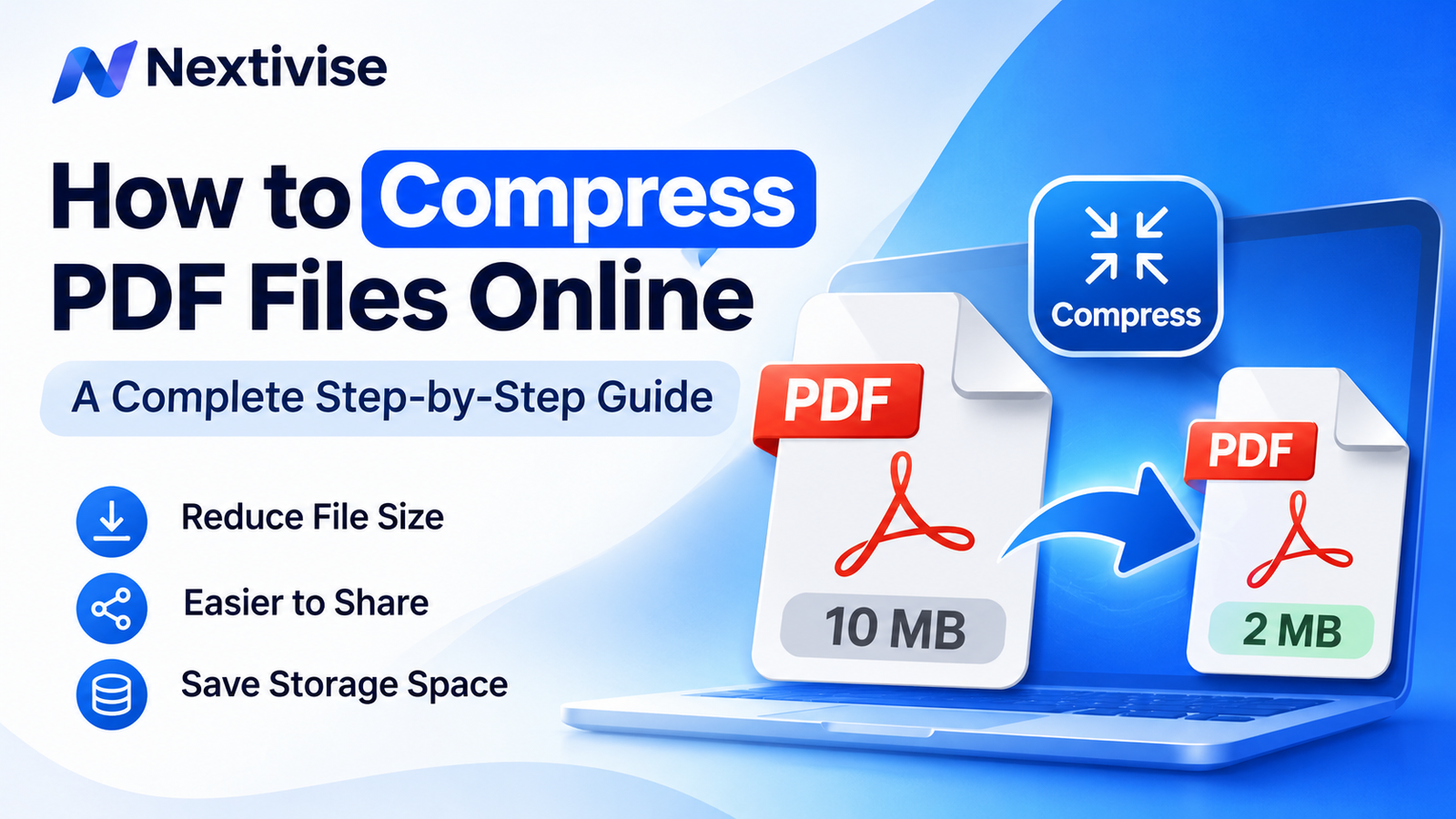
Compressing a PDF means reducing the file size by optimizing its contents. Depending on the document, this may involve reducing image resolution, optimizing embedded images, and removing unnecessary data.
For example, a PDF document that is 10 MB may become significantly smaller after compression. The actual reduction depends on the images, fonts, and other content inside the document.
Why Should You Compress PDF Files?
There are several practical reasons to reduce the size of PDF documents.
1. Easier File Sharing
Smaller PDF files are generally easier to attach to emails and share through messaging applications.
2. Faster Uploading
Large documents may take longer to upload, especially when using a slow internet connection. Smaller files can make uploading more convenient.
3. Save Storage Space
Compressing documents can help reduce the storage space they occupy on your computer or mobile device.
4. Meet File Size Limits
Some websites, online applications, and document submission systems have maximum file-size restrictions. PDF compression can help you prepare documents that meet those limits.
5. Better Document Management
Smaller files are easier to store, transfer, and organize when working with many PDF documents.
How to Compress PDF Files Online
You can use an online PDF compression tool to reduce the size of a document without installing desktop software.
Follow these general steps:
Step 1: Open a PDF Compressor
Visit the Nextivise Compress PDF Tool.
Step 2: Select Your PDF File
Choose the PDF document you want to compress from your computer or mobile device.
Step 3: Start Compression
Use the compression option available in the tool to process your selected document.
Step 4: Wait for Processing
Allow the tool to complete the compression process. Processing time may depend on the document size, images, and your device.
Step 5: Download the Compressed PDF
Once compression is complete, download the resulting PDF file.
Open the downloaded document to make sure its pages, text, and images appear correctly.
How Much Can You Reduce a PDF File?
The amount of compression depends on the contents of the original document.
For example:
- A PDF containing large photographs may have more opportunities for image optimization.
- A text-based PDF may already have a relatively small file size.
- A scanned document may contain large images that can potentially be optimized.
- A document that is already compressed may not become much smaller.
There is no guaranteed compression percentage for every PDF file.
Does Compressing a PDF Reduce Its Quality?
It depends on the compression method used.
Some compression methods optimize a PDF without noticeably changing its appearance. Other methods reduce image resolution or quality to achieve a smaller file size.
Before sharing an important document, review the compressed version carefully.
Pay particular attention to:
- Text readability
- Image clarity
- Charts and diagrams
- Scanned pages
- Important signatures and visual details
If the document is intended for professional printing, avoid excessive image compression.
Tips for Reducing PDF File Size
Here are some practical tips to get better results when compressing PDF documents.
1. Choose the Right Compression Level
If your PDF contains detailed images or graphics, use a compression level that maintains acceptable visual quality.
2. Optimize Large Images
Images often contribute significantly to PDF file size. Optimizing unnecessarily large images can help reduce document size.
3. Keep a Copy of the Original
Always save your original PDF before compression. This allows you to return to the original version if the compressed document does not meet your requirements.
4. Check the Final Document
Open the compressed PDF and review its pages before sending or submitting it.
5. Avoid Repeated Compression
Repeatedly compressing an already compressed PDF may provide little additional benefit and can sometimes reduce image quality.
Compress PDF Files Using Nextivise
You can use the Nextivise Compress PDF Tool to reduce the size of PDF documents through your browser.
To get started:
- Open the Compress PDF tool.
- Select your PDF document.
- Start the compression process.
- Wait for the tool to finish.
- Download and review the compressed document.
Check the options and file limits displayed on the tool page before processing your document.
If you need to organize your PDF documents further, you can also read our guides on How to Merge PDF Files Online and How to Split PDF Files Online.
Frequently Asked Questions
1. How do I compress a PDF file online?
Open an online PDF compression tool, select your document, start the compression process, and download the resulting file when processing is complete.
2. Can I compress PDF files for free?
Yes. You can use free online PDF compression tools to reduce document size without purchasing desktop software.
3. Will compressing a PDF affect its quality?
It can. Some compression methods reduce image resolution or quality. Always review the compressed document before sharing it.
4. Can I compress a PDF on my mobile phone?
Yes. You can use a compatible browser-based PDF compression tool on your smartphone. The experience may depend on your browser, device memory, and document size.
5. Why is my PDF file still large after compression?
A PDF may remain large if it contains high-resolution images, scanned pages, or content that is already optimized. The amount of reduction depends on the original document.
6. Can I compress a scanned PDF?
Yes, scanned PDFs can often be compressed by optimizing the images inside them. However, excessive compression may make scanned text difficult to read.
7. Does compressing a PDF change its page count?
Compression is intended to reduce file size rather than remove pages. However, you should check the resulting document to confirm that all pages are still present.
8. Is it safe to compress confidential PDF documents online?
This depends on how the tool processes and stores files. For sensitive documents, choose a tool with clear privacy practices and understand whether files are uploaded to an external server.
Final Thoughts
Compressing PDF files is a useful way to make documents easier to upload, share, and store.
Whether you are working with business reports, scanned documents, invoices, or study materials, reducing PDF file size can make document management more convenient.
Before sharing a compressed document, always review its readability and image quality.
Try the Nextivise Compress PDF Tool to get started with reducing your PDF file size online.