PDF files are widely used for sharing reports, business documents, study materials, invoices, and other important information. However, sometimes you may need only a few pages from a large PDF document instead of the entire file.
Splitting a PDF allows you to separate specific pages or divide a large document into smaller files. This makes documents easier to organize, share, and manage.
In this guide, you will learn how to split PDF files online, extract individual pages, divide large PDF documents, and understand the important things to check before splitting your files.
What Does It Mean to Split a PDF File?
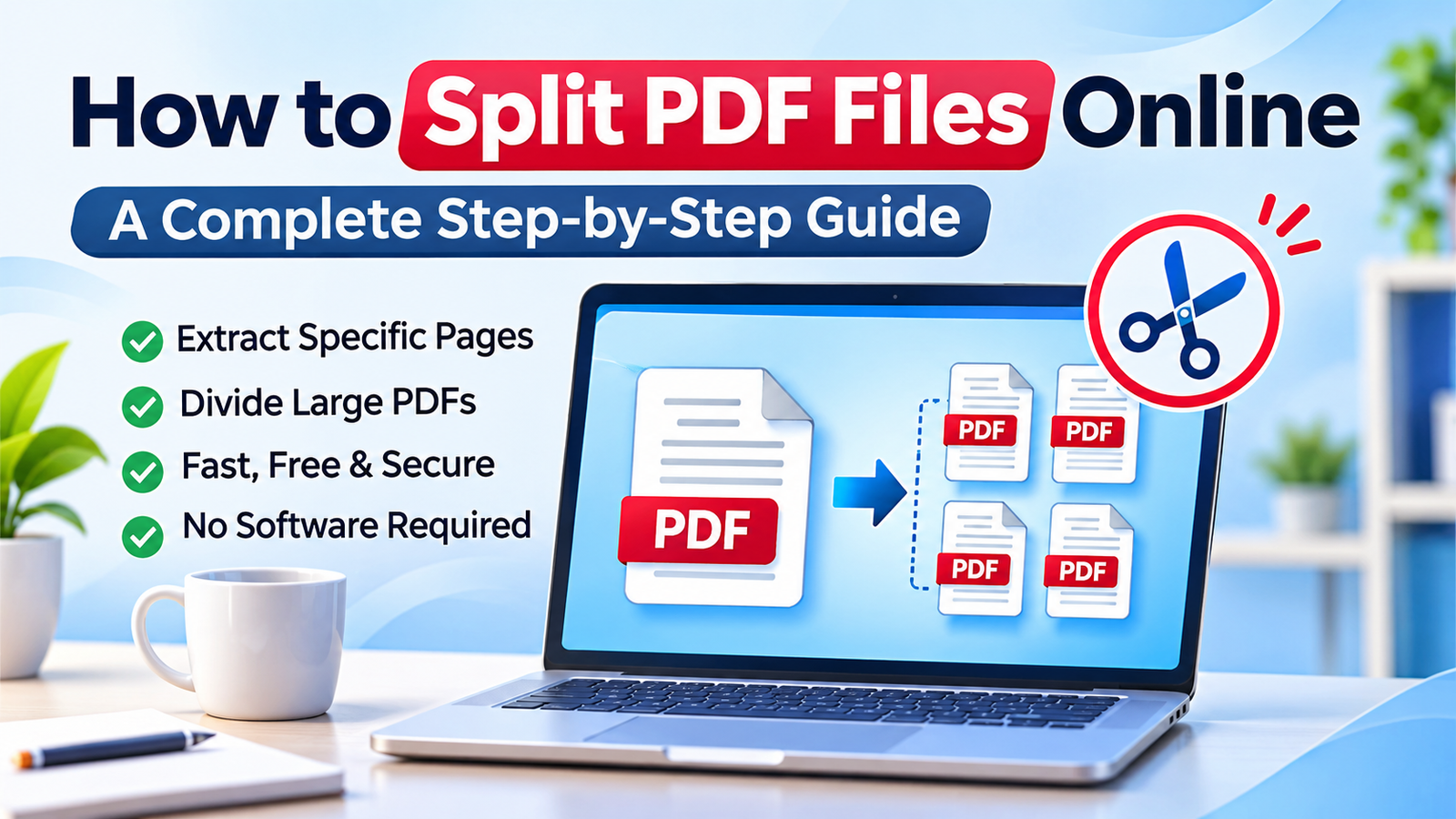
Splitting a PDF means dividing one PDF document into two or more separate PDF files.
For example, imagine you have a 30-page PDF document but only need pages 1–10 and 21–30. Instead of sharing the entire document, you can split it into smaller files containing only the pages you need.
Splitting PDF files is useful when you want to:
- Extract specific pages from a document.
- Divide large reports into smaller sections.
- Separate chapters from an eBook.
- Share selected pages with colleagues or clients.
- Organize invoices, statements, and business records.
Why Should You Split PDF Documents?
There are several reasons to divide PDF documents into smaller files.
1. Extract Important Pages
You may not need every page of a document. Splitting allows you to keep only the pages that are relevant to your work.
2. Reduce Document Size
Dividing a large PDF into smaller documents can make individual files easier to share and manage. However, splitting does not necessarily reduce the total size of all files combined.
3. Organize Business Documents
Businesses often work with reports, contracts, invoices, and statements. Separating these documents into smaller files can improve organization.
4. Share Selected Information
Instead of sending an entire report, you can share only the pages relevant to a particular person or task.
5. Manage Study Materials
Students can separate chapters, lecture notes, and assignments into individual PDF files for easier access.
How to Split PDF Files Online
You can split PDF documents using an online PDF splitting tool without installing desktop software.
Follow these general steps:
Step 1: Open a PDF Splitter
Visit the Nextivise Split PDF Tool.
Step 2: Select Your PDF File
Choose the PDF document you want to split from your computer or mobile device.
Step 3: Select the Pages
Choose the pages or page ranges you want to separate, depending on the options available in the tool.
For example, you may want to extract pages 1–5 from a larger document.
Step 4: Start the Splitting Process
After selecting your required pages, use the Split PDF option to process the document.
Step 5: Download Your PDF Files
When processing is complete, download the resulting PDF files and open them to confirm that the correct pages have been extracted.
If you need to combine multiple PDF documents instead of separating them, you can use our Merge PDF Tool to combine your files into one organized document. You can also read our guide on How to Merge PDF Files Online for a complete step-by-step explanation.
Common Ways to Split a PDF File
Different PDF documents require different splitting methods.
1. Extract Specific Pages
This method allows you to select particular pages and save them as a separate PDF document.
For example, you can extract pages 3, 5, and 8 from a larger report.
2. Split a PDF into Separate Sections
You can divide a document into sections based on page ranges.
For example:
- First PDF: Pages 1–10
- Second PDF: Pages 11–20
- Third PDF: Pages 21–30
This approach is useful for dividing lengthy reports or study materials.
3. Separate Individual Pages
If you need every page as a separate document, you can use a splitting option that creates individual PDF files for each page, when supported by the tool.
Important Things to Check Before Splitting PDFs
Before splitting a PDF document, consider the following points.
1. Check Page Numbers
Make sure you select the correct page numbers or page ranges.
2. Keep a Copy of the Original File
Save a copy of your original PDF before splitting it. This allows you to access the complete document later.
3. Review Password Protection
Some PDF tools may not support password-protected documents. Check whether your selected tool accepts your file.
4. Check the Resulting Documents
Open the downloaded files and verify that all required pages are present and readable.
5. Protect Sensitive Information
If your document contains confidential business, financial, or personal information, use a tool with clear file-processing and privacy practices.
Split PDF Files Using Nextivise
You can use the Nextivise Split PDF Tool to separate PDF documents directly through your browser.
To get started:
- Open the Split PDF tool.
- Select your PDF document.
- Choose the pages or page ranges you need.
- Start the splitting process.
- Download the resulting PDF files.
The available splitting options and file limits depend on the tool. Check the options displayed on the tool page before processing your document.
Frequently Asked Questions
1. How do I split a PDF file into multiple documents?
Open a PDF splitting tool, select your document, choose the required page ranges, and start the splitting process. Download the resulting files when processing is complete.
2. Can I split a PDF file for free?
Yes. You can use a free online PDF splitting tool to separate PDF documents without purchasing desktop software.
3. Can I extract only one page from a PDF?
Yes. If the PDF tool supports page extraction, you can select a single page and save it as a separate PDF document.
4. Can I split a PDF file on my mobile phone?
Yes. You can use a compatible browser-based PDF tool on your mobile phone. The experience may depend on your browser, device memory, and document size.
5. Does splitting a PDF reduce its file size?
Not necessarily. Splitting separates pages into different files, but it does not automatically compress the document. The total size of the resulting files may remain similar to the original.
6. Can I split a password-protected PDF?
This depends on the tool and the type of PDF protection. Some tools do not support password-protected files. Always use an authorized, accessible version of the document.
7. Will splitting a PDF affect its quality?
Splitting normally separates existing pages without intentionally changing their visual content. However, you should always open the resulting files to verify that everything appears correctly.
8. Can I split a large PDF document?
Many PDF tools support large documents, but their file-size and page limits vary. Check the specific limits of your chosen tool before starting.
Final Thoughts
Splitting PDF files is a practical way to organize documents, extract important pages, and share selected information without sending an entire document.
Whether you are working with business reports, study materials, invoices, or personal documents, a PDF splitter can make document management easier.
Before splitting, check the page ranges, keep a copy of the original file, and review the resulting documents.
Try the Nextivise Split PDF Tool to get started with separating your PDF documents online.