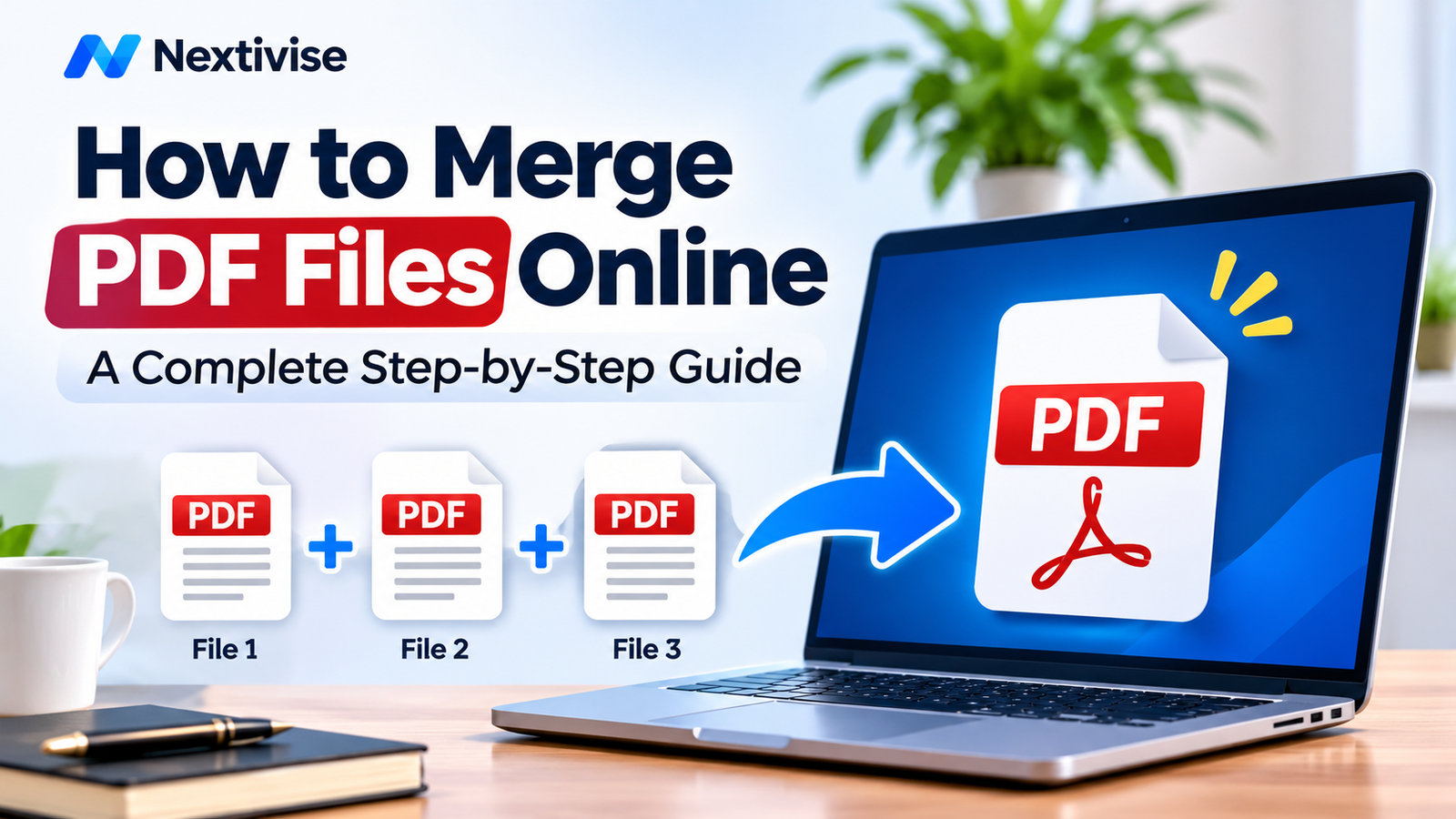
Combining multiple PDF documents into one file can make your work easier and help keep important documents organized. Whether you are preparing a business report, combining invoices, organizing study materials, or sharing several documents, merging PDFs saves time and reduces file clutter.
You do not need expensive software to combine PDF files. With an online PDF merger, you can select multiple documents, arrange them in the correct order, and create a single PDF file.
In this guide, you will learn how to merge PDF files online, understand the process step by step, and discover important things to check before combining your documents.
What Does It Mean to Merge PDF Files?
Merging PDF files means combining two or more separate PDF documents into one PDF file.
For example, suppose you have three documents:
- A cover page
- A project report
- An appendix
Instead of sharing three separate files, you can merge them into one document in the correct order.
The resulting PDF contains the pages from all selected documents in a single file.
Why Should You Combine Multiple PDF Files?
There are several practical reasons to merge PDF documents.
1. Keep Documents Organized
Combining related files makes it easier to manage documents. Instead of searching through several files, you can access everything in one place.
2. Easier File Sharing
Sending one PDF attachment is often more convenient than sending multiple separate documents.
3. Prepare Professional Reports
You can combine cover pages, reports, supporting documents, and appendices into one organized PDF.
4. Organize Study Materials
Students can combine lecture notes, assignments, reading materials, and reference documents into a single study file.
5. Simplify Record Keeping
Businesses can combine invoices, receipts, statements, and other related records for easier reference.
How to Merge PDF Files Online
You can combine multiple PDF documents using an online PDF merger without installing desktop software.
Follow these steps:
Step 1: Open a PDF Merger
Visit the Nextivise Merge PDF Tool.
The tool allows you to select multiple PDF files and combine them into one document.
Step 2: Select Your PDF Files
Choose two or more PDF documents from your device.
You can select multiple files at once. The tool supports between 2 and 20 PDF files.
Step 3: Arrange the File Order
Check the selected files and arrange them in the order you want them to appear in the final document.
The order matters because the pages are combined according to the selected file sequence.
Step 4: Merge the PDF Documents
After selecting and arranging your files, click the Merge PDFs button.
The tool processes the selected documents directly in your browser.
Step 5: Download the Merged PDF
Once the merging process is complete, download the resulting PDF file to your device.
Open the downloaded document to confirm that all pages are included and appear in the correct order.
Can You Merge PDF Files Without Uploading Them?
Yes. Some PDF tools process documents directly in your browser instead of uploading them to an external server.
The Nextivise Merge PDF Tool processes your selected files on your device. Your PDF documents are not uploaded to Nextivise.
This approach helps keep your documents on your device during the merging process.
However, always be careful when using online tools with confidential or sensitive documents. Check how a tool handles files before using it.
Important Things to Check Before Merging PDFs
Before combining documents, review these points:
1. Check the File Order
Make sure the documents are arranged correctly. The final PDF follows the selected order.
2. Check File Size
Large documents may take more time and device resources to process.
The Nextivise tool supports files up to 100 MB each, with a combined limit of 150 MB and 1,000 pages.
3. Check Password Protection
Password-protected PDFs cannot be merged using the Nextivise Merge PDF Tool.
You may need to obtain an accessible version of the document before proceeding.
4. Review Page Orientation
Check whether your documents contain portrait and landscape pages. The tool preserves the original page sizes and orientations.
5. Keep Original Documents
It is a good practice to keep copies of your original PDFs before merging them.
This allows you to return to the separate documents if you need them later.
Limitations of Merging PDF Files
Although merging PDFs is useful, some document features may not be preserved.
For example:
- Bookmarks are not carried over.
- Digital signatures are not carried over.
- Fillable form fields may no longer be editable.
- Password-protected PDFs cannot be merged using the Nextivise tool.
- The number and size of selected files must remain within the tool's limits.
If your documents contain important signatures, bookmarks, or interactive forms, review the merged document carefully before sharing it.
Merge PDF Files Using Nextivise
You can combine multiple PDF documents using the free Nextivise Merge PDF Tool.
The tool works directly in your browser and does not require you to upload your documents to Nextivise.
To get started:
- Open the Merge PDF tool.
- Select at least two PDF files.
- Arrange the documents in the required order.
- Select Merge PDFs.
- Download your combined document.
You can select between 2 and 20 PDF files, with a maximum of 100 MB per file and 150 MB or 1,000 pages in total.
Frequently Asked Questions
1. How do I merge two PDF files into one?
Open a PDF merger, select both PDF files, arrange them in the correct order, and click the Merge button. You can then download the combined document.
2. Can I merge multiple PDF files for free?
Yes. You can use a free PDF merger such as the Nextivise Merge PDF Tool to combine multiple PDF documents without installing additional software.
3. Can I merge PDF files without uploading them?
Yes. The Nextivise Merge PDF Tool processes files directly on your device in the browser. Your selected documents are not uploaded to Nextivise.
4. How many PDF files can I merge at once?
The Nextivise Merge PDF Tool supports between 2 and 20 PDF files in one operation, subject to its file-size and total-page limits.
5. Can I change the order of PDF files before merging?
Yes. Arrange the selected documents in your preferred order before starting the merging process. The final PDF follows that order.
6. Can I merge password-protected PDF files?
Password-protected PDFs cannot be merged using the Nextivise Merge PDF Tool. You need an accessible, unprotected version of the document.
7. Will merging PDFs reduce their quality?
The Nextivise tool preserves the original page sizes and orientations. However, always review the resulting document to confirm that its pages appear as expected.
8. Can I merge PDF files on my mobile phone?
You can use a browser-based PDF merger on a compatible mobile device. The experience may depend on your browser, available memory, and the size of your documents.
Final Thoughts
Merging PDF files is a simple way to organize documents, prepare reports, and make file sharing easier.
Instead of managing several separate documents, you can combine related PDFs into one organized file.
Before merging, check the file order, document size, password protection, and important features such as bookmarks and digital signatures.
Try the free Nextivise Merge PDF Tool to combine your PDF documents directly in your browser.